Intro
If you have been tracking the [macOS 27.3 app permissions] changes rolling out in the beta, you likely noticed the sudden pivot toward strict granularity. Apple is no longer just tightening the screws on Full Disk Access; they are fundamentally restructuring how apps request control over your machine. In macOS 27.3 beta 2, the company split the previously monolithic Device Control and Data Access settings into two distinct categories: System & App Protection Override and Accessibility. This isn’t a cosmetic update to the System Preferences pane. It is a structural change in how autonomous AI agents interact with sensitive system resources.
The immediate context for this shift is the growing unease among endpoint security teams regarding autonomous agents. For years, the default security model assumed a human was always in the loop, clicking “Allow” when a prompt appeared. AI agents disrupt that assumption. An agent that decides to “clean up” your downloads folder or “organize” your documents needs permission to touch files it did not originally access. If that agent has broad, unchecked access to the entire disk, a single bad instruction or a compromised prompt could lead to data exfiltration or deletion that a human would never have approved. Apple’s statement on the change makes this motivation explicit: users need to understand that granting extraordinary access puts all data on the Mac at risk, and the new controls are designed to help users make informed decisions about that risk.
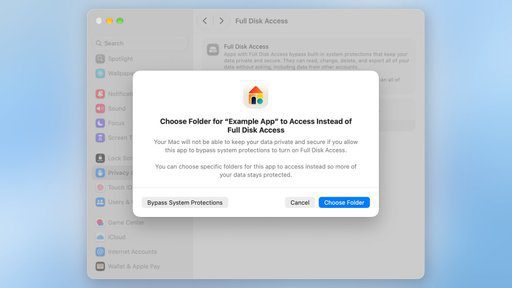
The user impact right now is manageable for existing setups, but developers need to start looking at their onboarding workflows. Existing permissions granted in previous versions of macOS remain intact. Your apps will not suddenly lose access to folders they’ve had for months. However, for new installations or updates, the friction is higher. Developers must now prepare their onboarding flows to handle scenarios where a user grants access to a limited set of folders rather than the whole disk. This means your error handling cannot just assume NSFileManager will have a free pass to /Users/username/Documents. It needs to gracefully degrade when it only sees /Users/username/Documents/Projects.
This move also sets the stage for a broader cultural shift in how we think about application permissions on macOS. We are moving away from the “grant and forget” model toward a “continuous consent” model. The new UI includes options to ask for access every time and transparency indicators that show when one app is controlling another via System & App Protection Override. For site owners and developers running automation scripts or creative software, this means you can no longer rely on a one-time permission grant to cover your entire lifecycle. You need to anticipate that your user might revoke broad access and prefer a tighter, more specific scope. The practical takeaway is simple: audit your permission requests now. If you are asking for Full Disk Access to do something that could be done with scoped folder access, start building that alternative path. The beta is the warning shot. The final release will likely be the standard.
Background
To understand why Apple moved this aggressively, you have to look at how Full Disk Access (FDA) functioned for the last decade. It was a blunt instrument. When an app requested FDA, it gained the ability to read and write to nearly every file on the system, regardless of whether the user wanted that. For traditional desktop software, this was acceptable because the risk was contained. A video editor needed access to your media library; a backup tool needed access to everything. The threat model assumed that if you installed an app, you trusted it. You clicked “Allow,” and that was that.
That assumption crumbled when autonomous AI agents entered the mix. The security team at Apple identified a specific, high-impact vector: malicious or compromised AI agents operating within over-permissioned applications. Imagine a legitimate note-taking app with an AI copilot that has FDA. If that copilot is compromised by a prompt injection attack, or if a malicious developer builds an “assistant” that claims to help organize your files but actually exfiltrates your SSH keys and financial documents, the FDA permission becomes the highway for the breach. The agent doesn’t need to exploit a kernel vulnerability to steal your data. It just needs the broad file system access it was already granted.
This is not a hypothetical. Over the past month, Apple began tightening the screws around FDA specifically because endpoint security teams were reporting incidents where AI-driven malware could move laterally across a Mac by reading files it shouldn’t have seen. The risk was that these autonomous agents could scan your entire home directory, grab sensitive credentials, and send them out over the network, all within the permissions originally granted to a seemingly harmless productivity tool. Apple’s earlier steps last month were the foundation for this current beta. They started restricting what FDA actually exposes and began building the infrastructure to separate “controlling an app” from “reading a file.”
The current change in macOS 27.3 beta 2 is the logical conclusion of that groundwork. It splits the old, monolithic FDA permission into two distinct, granular controls. One part handles system-level protection overrides, and the other handles accessibility features. This separation is critical. It stops a single toggle from granting a malicious actor both the power to bypass system security AND the ability to manipulate the user interface. By breaking the “all-or-nothing” model, Apple is forcing a re-evaluation of what each app actually needs.
I have seen this pattern in Linux permissioning before, where moving from root-only scripts to systemd user units and scoped capabilities reduced the blast radius of a compromised service. The analogy holds here. When a tool only has access to the specific folder it operates on, a compromise is confined to that directory. When it has the System & App Protection Override, the compromise can escalate to system control. Apple is making that distinction visible to the user. It is not just about blocking bad actors; it is about making the user conscious of the trade-off between convenience and security. The days of blindly granting FDA to save a few clicks are ending. The security team behind this change knows that in the era of AI agents, “broad access” is no longer a feature. It is a liability.
What’s happening now
The specific mechanics of this shift are visible in the new permission dialogs and settings panes introduced in the beta. Apple has consolidated the previously fragmented permission grants into a single, unified method. Instead of multiple overlapping prompts, users now select the requesting app from a list to grant access. This list explicitly highlights whether the app is asking for System & App Protection Override or Accessibility permissions. The goal is to reduce the cognitive load that often leads to users clicking “allow” on everything.
A significant new addition is the “ask every time” option. Previously, once you granted a permission, it persisted indefinitely until you manually revoked it. Now, developers can configure their apps to require re-verification for sensitive operations. This is particularly useful for automated scripts that might run in the background for days. If an agent needs to move a file from a protected directory, the system can pause and ask the user again, rather than silently using a stored token. This changes the interaction model from “grant and forget” to “continuous consent.”
You will also notice a transparency indicator when one app is controlling another via System & App Protection Override. This visual cue is crucial. If an AI assistant is driving a browser or a file manager through the Device Control API, the user sees exactly who is in control. There is no longer ambiguity about which process is executing actions on behalf of another. This prevents the “zombie app” scenario where a background agent acts with elevated privileges without the user’s active awareness.
For disk backup and assistive technologies, the entitlement system now plays a more defined role. Apps that genuinely need full system-wide access for backup operations or to support screen readers can request specific entitlements during installation. Apple has stated that currently known apps will retain the old experience without needing to request these new entitlements immediately. However, new installations of these types of apps must explicitly request them. This creates a clear line in the sand. Legacy software works as before, but any new tool claiming to be a “backup engine” or “accessibility helper” must prove its intent through the entitlement system.
This granular approach affects how developers write their onboarding flows. You can no longer assume that a user will grant broad permissions. Your first-run experience must be able to handle a scenario where the user only grants access to a specific folder, say ~/Documents, rather than their entire home directory. If your application fails because it cannot read ~/Downloads when the user has only authorized ~/Documents, that is a design flaw in the context of the new macOS 27.3 app permissions model. The system is telling you to respect the boundaries the user has drawn.
What it means in practice
For developers building automation or accessibility tools, the Device Control API update changes how you structure your permission requests. Previously, the system assumed that if an app needed to control another application, it likely needed system-wide oversight. Now, that assumption is gone. You must explicitly define the scope of control. If your tool only interacts with specific applications, such as a screen reader managing a text editor, your onboarding flow should guide the user to grant access to those specific apps rather than the entire system. This shift requires a reevaluation of your internal architecture. Are you checking permissions at the OS level or relying on implicit trust? The new transparency indicators mean that if your app is controlling another process, the user will see a visible signal in the menu bar or system settings. If your users do not expect this visual cue, they may revoke access or, worse, avoid using your tool altogether because the interface feels intrusive.
This granularity has direct consequences for enterprise environments where complex workflows depend on deep system integration. Consider a creative agency using a script that monitors a specific folder for rendered video files and automatically imports them into a project management tool. Under the old model, the script might have requested Full Disk Access to ensure it never missed a file. In the new macOS 27.3 app permissions framework, that script should only request access to the specific output directory, perhaps ~/Movies/Rendered/, and the target application. This approach reduces the attack surface. If the script is compromised or buggy, the damage is confined to that folder rather than the entire user home directory.
The friction here is real, but it is manageable if you plan for it. Users who install complex development tools will face a more involved setup process. They will be prompted to select which folders their IDE can access and which system processes it can control. This is a departure from the “click next” installation experience that most desktop software relied on for the last decade. You should expect some initial user confusion. Documentation must be clear about why the app is asking for specific permissions. Hiding the permission requests or burying them in technical jargon will lead to support tickets. Transparency is the new baseline.
I have seen this transition happen before on Linux with systemd scopes, where services are sandboxed by default and must explicitly request broader access. The learning curve exists, but the security benefits become apparent after the first few months of use. Teams stop granting blanket permissions out of habit because the system forces them to think about the specific data paths involved.
For site owners and small business operators, the impact is less about code changes and more about vendor trust. If you use third-party tools that claim to automate backups or assistive features, check their update logs. If they were released after the macOS 27.3 beta, ask how they handle the new entitlements. A tool that refuses to explain its permission needs or demands Full Disk Access for a simple file copy task is now a red flag. The system provides the tools to verify exactly what data an app can touch. Use them. The days of granting access on faith are over.
What to expect next
Apple has stated that additional details regarding the entitlement system are coming soon, which means the current state of documentation is incomplete. If you are building tools that require broad system access, you cannot finalize your implementation logic until the specific entitlement strings and API changes are published. For now, treat the “ask every time” option and the folder-level selection UI as the functional baseline. The company is deliberately rolling this out in stages to gather telemetry on where developers trip up. Expect a flurry of forum posts and developer mailing list threads once the SDK updates hit Xcode. The focus will likely be on error codes for when an app requests a folder that the user has explicitly denied. I expect these errors to be more descriptive than standard permission denied responses, since the system now tracks the specific target of the request.
There is also a reasonable chance that Apple will introduce stricter auditing logs for System & App Protection Override. The transparency indicator currently shows when one app is controlling another, but it does not yet log what actions are being taken in the background. For enterprise environments, this gap will frustrate security teams who need to answer the question: did that automation agent just move a file, or did it delete a preference pane? I anticipate a version of the logs tool or a new privacy menu entry that allows admins to review a timeline of cross-app control events. This aligns with the broader trend in Apple’s AI agent security architecture, which is moving away from static permission grants and toward continuous, context-aware validation.
One concrete implication for you is the onboarding friction for complex creative or enterprise applications. Imagine a video editing suite that needs to control the file system for media management and also use assistive technology for screen-reading features. Previously, that was two separate toggles. Now, it might be three: specific media folders, the System & App Protection Override for the app itself, and the Accessibility entitlement for the assistive features. Users who are not technically inclined will likely default to the path of least resistance, which means they will grant broad access to make the setup screen go away. Apple’s interface design will have to do the heavy lifting of convincing users that selecting individual folders is the safer, less annoying long-term choice. If the UX for selecting a limited set of folders is clunky, adoption of the secure path will be low.
I expect future releases to tighten the “known apps” exemption. Apple currently states that known apps keep the old experience without new entitlements. This is a temporary grace period. The list of “known apps” will likely shrink or require re-validation as the ecosystem stabilizes around the new granular model. If you rely on a small utility that currently works smoothly, check its update frequency. If it does not update to declare the new entitlements before that exemption window closes, your users will start seeing new permission prompts that they did not have before. That is a support ticket waiting to happen.
Action: Do not wait for the full entitlement specification to start planning. Open your project’s permission request code today and identify every place where you call NSOpenPanel or request Device Control access. Map those calls to specific, hard-coded file paths or app identifiers. You will need to hard-code these targets in your entitlements file. If your current code relies on user-selected directories at runtime without a pre-defined safe list, you are going to need a significant refactor to comply with the “limited set of folders” model. Start that mapping now. It is the part of the migration that cannot be automated.
How does this affect assistive technology and backup workflows?
Apple is making a specific carve-out here that matters if you build or maintain tools for users with disabilities or high-volume data retention needs. The update confirms that applications using Full Disk Access for disk backup, or those relying on the new Accessibility settings for assistive technologies, can request specific entitlements. This is not just a checkbox; it is a formalized mechanism to ensure that critical functionality does not break when the underlying permission model shifts. The goal is to prevent a service interruption for tools that genuinely need deep system visibility to function. If a screen reader cannot access the necessary system hooks, or if a backup utility cannot read encrypted volumes, the user experience fails entirely. By allowing these apps to request an entitlement that preserves the pre-macOS 27.3 experience, Apple is acknowledging that granular folder-by-folder access is sometimes technically impossible or impractical for these specific use cases.
The source material clarifies that currently known apps are not affected and will continue to function without needing to adopt the new entitlements immediately. This provides a grace period, but it is not a permanent exemption. The phrase “known apps” is doing a lot of heavy lifting here. In practice, this likely refers to major ecosystem players whose identifiers Apple has already whitelisted internally. If you are developing a niche backup tool or an independent assistive technology plugin, you should assume you are not on that list by default. You will need to proactively request the entitlement during the next code signing and distribution cycle. Waiting for Apple to add your app by name is a passive strategy that will leave your users stranded when the beta becomes stable.
Consider the practical implication for a backup workflow that previously relied on a generic “Full Disk Access” toggle. Under the new regime, if your tool is not on the “known” list, it must declare its need for broad access through the entitlement system. This adds a layer of scrutiny. Apple can, and likely will, review these requests to ensure they are justified. A utility that only backs up user documents does not need system-wide disk access, and its entitlement request will probably be denied in favor of the granular folder model. Only tools that have a verifiable, technical need to access system files or boot volumes will likely retain the broad access. For assistive technology, the bar is similar. A voice control app that only interacts with the frontmost application should not be granted the ability to control other apps in the background without a very strong justification.
You should audit your current entitlements files and prepare the new requests now. If your software targets accessibility features, ensure your code explicitly references the new Accessibility settings rather than relying on legacy hooks. The shift from Device Control to Accessibility for these specific tools changes the API surface. You are no longer just asking for “permission to move the mouse”; you are asking for “permission to operate assistive input methods.” The documentation will eventually detail the specific strings required in your Info.plist or entitlements file, but the architectural change is already visible in the beta. If you are building for enterprise environments where custom backup agents run on employee Macs, coordinate with your IT security team. They need to know that the standard “Full Disk Access” toggle in System Settings will not be the primary mechanism for enabling your agent. They will need to distribute the specific entitlement alongside the binary. This is a deployment pipeline change, not just a code change. Do not ship a build that relies on the old, broad permission without the new entitlement, or your enterprise customers will find their backups silently failing during the transition period. The distinction between “known apps” and “new installations” is the key factor here. Test both paths.
A concrete next step
The most useful thing you can do right now is to stop thinking in terms of “Full Disk Access” as a static toggle and start mapping out your actual data dependencies. This is not a task for next quarter. It is a task for this week, because the beta window is your only chance to test the new flow before Apple locks in the final entitlement strings.
Start by identifying every script, service, or helper tool on your Mac that currently writes to directories outside the user’s home folder. You probably assume that your backup utility needs access to /Volumes/ExternalDrive and /Library/Application Support/MyApp. But does it really need access to /usr? Most likely, it does not. The new macOS 27.3 app permissions model forces you to justify every single byte of access. If you cannot point to a specific file or folder that your application absolutely requires, cut it from your request list.
Consider a practical example. Say you run a local development environment manager that automates Docker builds and syncs files to a remote server. Previously, you granted this tool Full Disk Access because it needed to read source code from anywhere on the system. Under the new rules, you cannot just ask for “everything.” You have to break this down. You might need access to ~/Projects for the source code, but you likely do not need access to /System or /private/var. Your onboarding flow now has to walk the user through a specific, guided process: “Allow access to your Projects folder.” Then, separately, “Allow access to the Docker daemon socket.” This is more work for your users, yes, but it is also a massive trust signal. You are showing them exactly what you are doing, rather than asking for the keys to their entire car when they only needed to open the glovebox.
To prepare your codebase, create a new branch that implements the “limited access” path. Do not wait for the entitlements to be finalized. Write the logic that checks for the specific folder permissions first. If they are denied, fall back to a read-only mode or prompt the user for more specific access. This resilient design will serve you well regardless of how Apple finalizes the UI.
Also, update your documentation and support macros. The phrase “please enable Full Disk Access for our app” is about to become obsolete. Replace it with instructions that reflect the new granularity. “Please grant access to the [Specific Folder Name] in the [Specific App Name] permissions list.” This small copy change prevents a wave of confused users during the release.
Finally, keep an eye on the developer forums for the specific entitlement keys. Apple has said details are coming soon, but the community will likely reverse-engineer the beta updates quickly. If you are an early adopter, join the beta channel today. You will find that the friction in the new onboarding is temporary, but the security benefits are permanent. Your users will stop feeling uneasy about handing over their entire drive to a small utility. That peace of mind is the real value here, and it is worth the extra development effort to implement properly.